

Get set up in three steps: install the Skills, create your Agentic Wallet, and sign in — then start operating on-chain through natural language with your AI Agent.
Prerequisites
Node.js 18+ — required by the Skills installer.
Binance Account & MPC Wallet
- You need a Binance account to get started.
- After signing in to Binance, create an MPC Wallet in the Binance App — this is required before you can create an Agentic Wallet.
Step 1: Install Skills
Code
If the
bawCLI is not installed, Skills will detect this and install it automatically on first use.
Step 2: Create your Agentic Wallet
Your Agentic Wallet is created in the Binance App, on top of your existing MPC Wallet. You only do this once.
Ask your AI Agent to start the flow:
"Create my Binance Agentic Wallet"
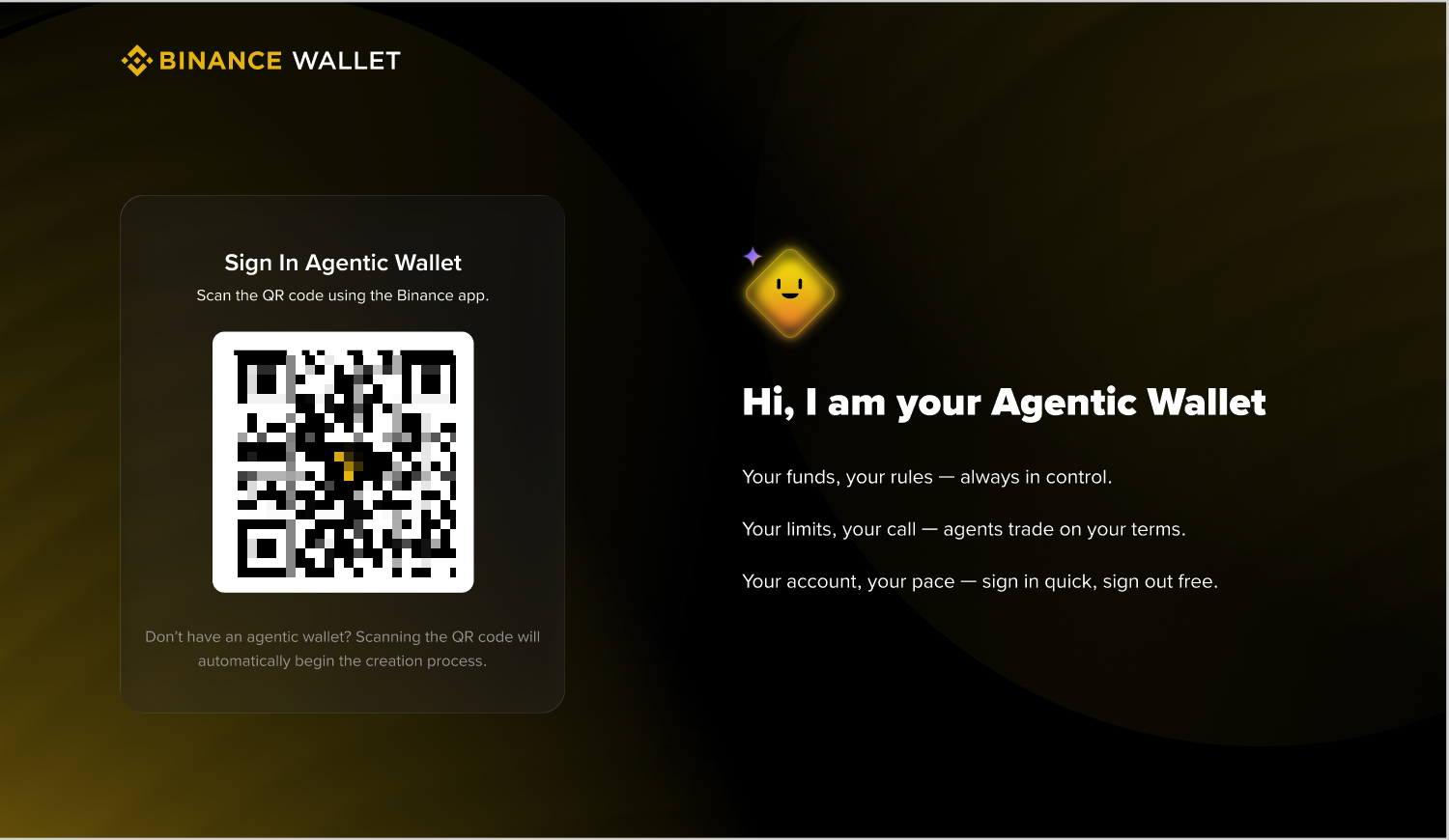
The Agent returns a link. Open it on mobile to jump straight into the Binance App, or open it on the web to get a QR code — scan it with the Binance App. If you don't have an Agentic Wallet yet, scanning the code automatically begins the creation process.
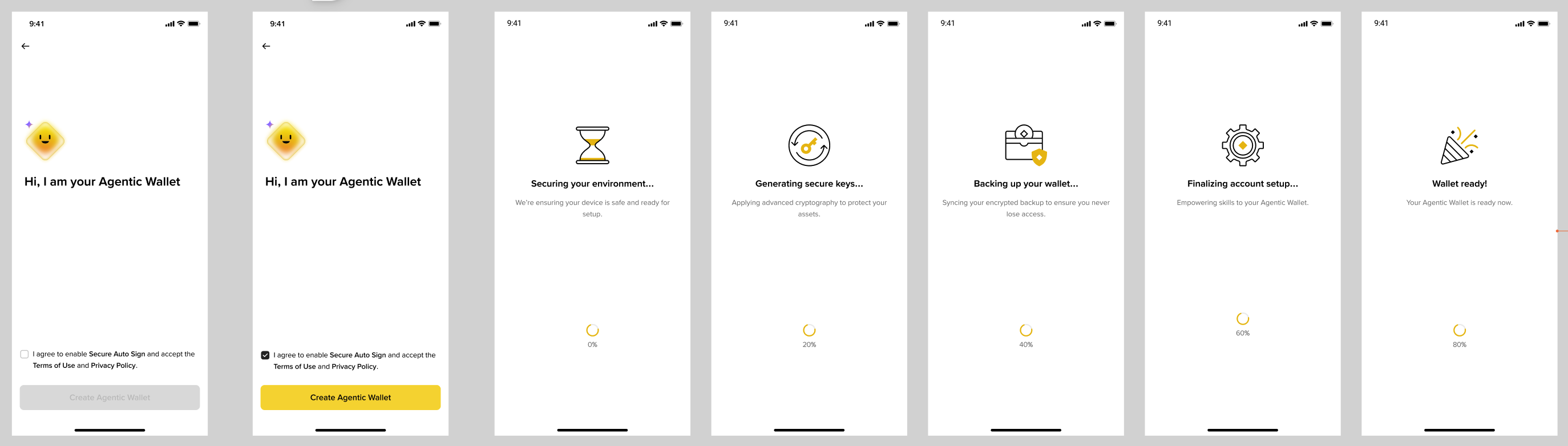
In the Binance App, tick "I agree to enable Secure Auto Sign" (accepting the Terms of Use and Privacy Policy), then tap Create Agentic Wallet. The App runs the setup automatically — securing your environment, generating secure keys, backing up, and finalizing — and shows "Wallet ready!" when done. You'll then land on the Agentic Wallet management page.
Note: If you already have an Agentic Wallet, skip this step and go straight to sign-in. The first-time sign-in flow (Step 3) will also guide you through creation if you haven't created one yet — so creating and signing in can happen in a single pass.
Step 3: Sign In
Once your wallet exists, connect it to your AI Agent:
"Sign in to Binance Agentic Wallet"
The Agent returns a sign-in link. On mobile it redirects you straight into the Binance App; on the web you scan the QR code with the Binance App. In the App:
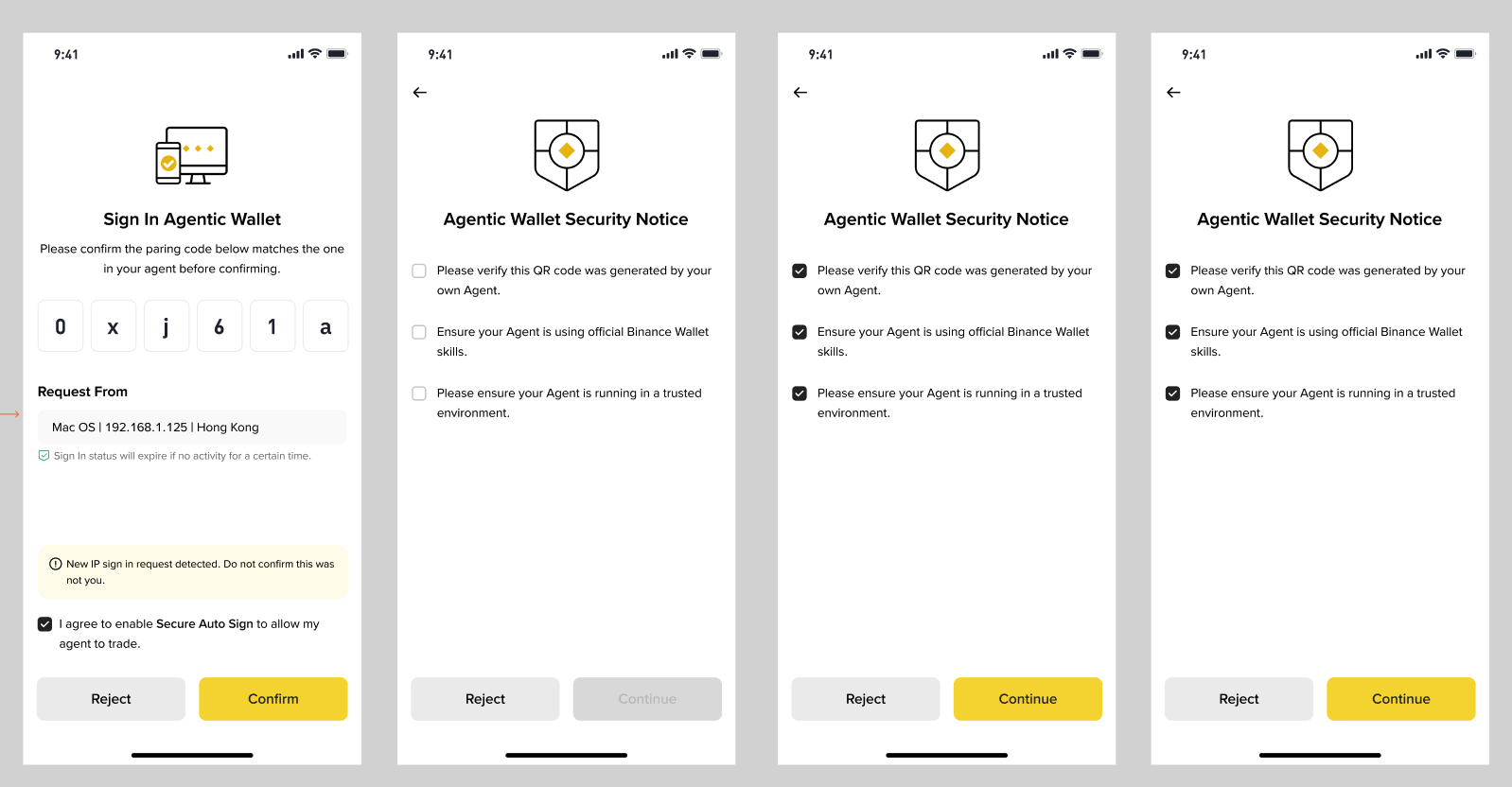
- Check the pairing code — confirm the 6-character code shown matches the one in your agent, and review the request source (OS / IP / location). If a new-IP warning appears, don't confirm unless it's you. Tick "I agree to enable Secure Auto Sign" to let your agent trade, then tap Confirm.
- Accept the security notice — tick all three checks (QR generated by your own agent, official Binance Wallet skills, trusted environment), then tap Continue.
Once confirmed, you're signed in and can start trading through conversation.
To sign out, tell your AI:
"Sign out"
Security Recommendations
Security rules can only be configured in the Binance App — the AI can read them but cannot modify them. For first-time setup, we recommend:
- Set a daily limit that matches your risk comfort (e.g., $5,000) — this caps how much the agent can transact per day
- Restrict tradable tokens to the Limited scope
- Set high-risk transaction handling to "Require App confirmation"
To modify: Binance App → Agentic Wallet management page → Settings icon (top right)